EPMO MODLIN 2009 Просмотр ZIP-архива
README.txt
---------------------------------------------------
DESCRIPTION:

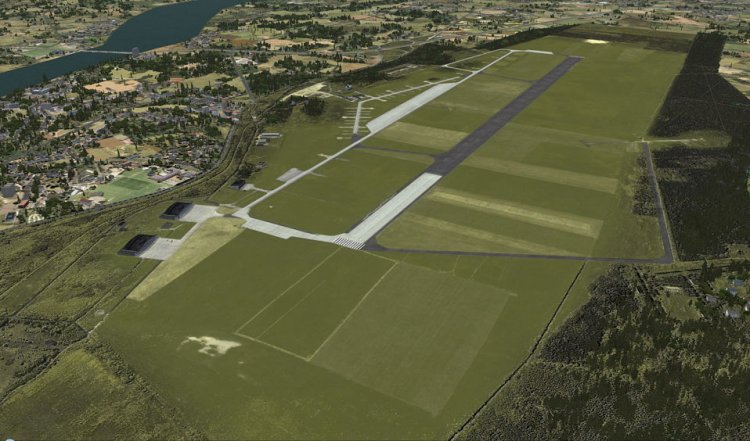
EPMO MODLIN 2009 features an extremely detailed scenery of military airfield near Warsaw, Poland, fully compatible with FSX. In the past it was a payware scenery, but Drzewiecki Design decided to provide you that old full product for FREE!

The airport was upgraded around 2012 and currently it has a nice passenger terminal and serves low-cost carriers like Ryanair, however back in 2009 it was an almost abandoned military airfield with some amazing structures inside. This scenery shows the status of Modlin aiport in 2009 having many tumble-down buildings, deformed and rusty metal stairs and much more. Nothing has left of that old airport by now but using our scenery you can go back in time and check for yourself how it looked like.

The scenery features accurate positioning, modelling and texturing, high quality photoreal textures of all airport buildings (some buildings include interior) and high quality aerial photos of the airport. The package also includes charts and airfield specification.

The product is equipped with an automatic installer, but you need to manually add the airport into the Flight Simulator Scenery Library (see attached manual or read my text below). Please uninstall all previous versions of this airport you may have installed before. Please make also sure that no duplicated AFCAD files are installed.

Enjoy your virtual flying with Drzewiecki Design!

---------------------------------------------------
INSTALLATION:

This product us equipped with an automatic installer. We support a safe, manual way of adding new sceneries to Scenery Library in Flight Simulator. This is just one thing a user need to do himself/herself. In Flight Simulator's menu go to Settings -> Scenery Library, click Add new scenery and then select EPMO airport. It should be located in your main FS folder\Addon Scenery\Warsaw Airports 2009 by Drzewiecki Design\EPMO, click OK but please also remember that using Win7/Win8 there is a bug in FSX, so it’s necessary to click right mouse button in the white area in that open folder -> dialog will close and thus the selected scenery will be added in the list. The last thing is to restart your FS. After completing these steps the EPMO scenery should work properly.

In case of any problems, please contact us: [email protected]
57427-EPMO-2009-FSX.zip
| Имя файла | Дата | Размер |
|---|---|---|
| EPMO_2009_FSX.exe | 25.08.2015 14:12 | 145 MB |
| EPMO_Old_1.jpg | 25.08.2015 15:18 | 109 KB |
| EPMO_Old_10.jpg | 25.08.2015 15:21 | 139 KB |
| EPMO_Old_2.jpg | 25.08.2015 15:18 | 220 KB |
| EPMO_Old_3.jpg | 25.08.2015 15:18 | 169 KB |
| EPMO_Old_4.jpg | 25.08.2015 15:19 | 133 KB |
| EPMO_Old_5.jpg | 25.08.2015 15:19 | 72 KB |
| EPMO_Old_6.jpg | 25.08.2015 15:19 | 180 KB |
| EPMO_Old_7.jpg | 25.08.2015 15:19 | 184 KB |
| EPMO_Old_8.jpg | 25.08.2015 15:19 | 156 KB |
| EPMO_Old_9.jpg | 25.08.2015 15:20 | 185 KB |
| EPMO_X MANUAL.pdf | 15.05.2010 19:02 | 439 KB |
| README.txt | 31.08.2015 13:40 | 2 KB |
| avsim_su.diz | 17.09.2015 20:00 | 406 B |
| Итого: | 147 MB | |
EPMO MODLIN 2009 features an extremely detailed scenery of military airfield near Warsaw, Poland, fully compatible with FSX. In the past it was a payware scenery, but Drzewiecki Design decided to provide you that old full product for FREE!
The airport was upgraded around 2012 and currently it has a nice passenger terminal and serves low-cost carriers like Ryanair, however back in 2009 it was an almost abandoned military airfield with some amazing structures inside. This scenery shows the status of Modlin aiport in 2009 having many tumble-down buildings, deformed and rusty metal stairs and much more. Nothing has left of that old airport by now but using our scenery you can go back in time and check for yourself how it looked like.
The scenery features accurate positioning, modelling and texturing, high quality photoreal textures of all airport buildings (some buildings include interior) and high quality aerial photos of the airport. The package also includes charts and airfield specification.
The product is equipped with an automatic installer, but you need to manually add the airport into the Flight Simulator Scenery Library (see attached manual or read my text below). Please uninstall all previous versions of this airport you may have installed before. Please make also sure that no duplicated AFCAD files are installed.
Enjoy your virtual flying with Drzewiecki Design!
The airport was upgraded around 2012 and currently it has a nice passenger terminal and serves low-cost carriers like Ryanair, however back in 2009 it was an almost abandoned military airfield with some amazing structures inside. This scenery shows the status of Modlin aiport in 2009 having many tumble-down buildings, deformed and rusty metal stairs and much more. Nothing has left of that old airport by now but using our scenery you can go back in time and check for yourself how it looked like.
The scenery features accurate positioning, modelling and texturing, high quality photoreal textures of all airport buildings (some buildings include interior) and high quality aerial photos of the airport. The package also includes charts and airfield specification.
The product is equipped with an automatic installer, but you need to manually add the airport into the Flight Simulator Scenery Library (see attached manual or read my text below). Please uninstall all previous versions of this airport you may have installed before. Please make also sure that no duplicated AFCAD files are installed.
Enjoy your virtual flying with Drzewiecki Design!
→ Size:
147 MB
→ Date:
10 years ago (17.09.2015 18:31)
→ Author:
Drzewiecki Design
→ Approved by moderator:
SLAVJAN
→ License:
Freeware - Free version, Do Not Redistribute
→ Downloaded:
449 time(s)