FS Announcement Panel v2.0 for FS2004/FSX Просмотр ZIP-архива
README(ENG).txt
*****************************************************************************************
FS Announcement Panel v2.0
Microsoft Flight Simulator 2004 / Microsoft Flight Simulator X
*****************************************************************************************
© 2017 Harrier Panels. All Rights Reserved.
****************************************************************************************************
SEE THE PANEL REVIEW: https://youtu.be/BTcfwwbU_7Q
****************************************************************************************************
 	USER MANUAL
*****************************************************************************************

	CONTENTS:
	1. Introduction........................................page 2
	2. Installation and Removal.......................page 3
	3. Technical Information...........................page 5
	4. Instructions of Usage............................page 6


-----------------------------------------------------------------------------------------------------------------
		1. Introduction:

-----------------------------------------------------------------------------------------------------------------

The panel allows you to play any sound by pressing a switch accordingly. It is based on Marcus Thompson's FDSFX
panel. Added messages up to 30 for different stages of the flight, the panel itself is redesigned, this package
includes a Russian Tupolev aircraft style skin. Also the panel comes with Ukrainian airlines crewpack - messages
In Ukrainian / English / Russian. Suitable for any Ukrainian airline. The panel will serve as a virtual cabin crew
for your aircraft.

-----------------------------------------------------------------------------------------------------------------

		2. Installation and Removal:

-----------------------------------------------------------------------------------------------------------------
		Installation
-----------------------------------------------------------------------------------------------------------------

2.1 To install the package of gauges, sounds, and the panel bitmap start the program SETUP.exe.
Follow the instructions of the installation program.

-----------------------------------------------------------------------------------------------------------------
NOTE: If the installation program is unable to detect your flight simulator folder chose it manually.
-----------------------------------------------------------------------------------------------------------------

The program will install the following files:

---------------------
\Gauges\
01_harrier_fsap_board_UKR.dat
01_Harrier_FSAP_Board_UKR.gau
02_harrier_fsap_deboard_UKR.dat
02_Harrier_FSAP_Deboard_UKR.gau
03_harrier_fsap_music1_UKR.dat
03_Harrier_FSAP_Music1_UKR.gau
04_harrier_fsap_music2_UKR.dat
04_Harrier_FSAP_Music2_UKR.gau
05_harrier_fsap_music3_UKR.dat
05_Harrier_FSAP_Music3_UKR.gau
06_harrier_fsap_all_aboard_UKR.dat
06_Harrier_FSAP_all_aboard_UKR.gau
07_harrier_fsap_allpassleft_UKR.dat
07_Harrier_FSAP_allpassleft_UKR.gau
08_harrier_fsap_welcome_UKR.dat
08_Harrier_FSAP_welcome_UKR.gau
09_harrier_fsap_safety_UKR.dat
09_Harrier_FSAP_safety_UKR.gau
10_harrier_fsap_nighttakeoff_UKR.dat
10_Harrier_FSAP_nighttakeoff_UKR.gau
11_harrier_fsap_preparetakeoff_UKR.dat
11_Harrier_FSAP_preparetakeoff_UKR.gau
12_harrier_fsap_climbingdevice_UKR.dat
12_Harrier_FSAP_climbingdevice_UKR.gau
13_harrier_fsap_levelbelt_UKR.dat
13_Harrier_FSAP_levelbelt_UKR.gau
14_harrier_fsap_unfasten_UKR.dat
14_Harrier_FSAP_unfasten_UKR.gau
15_harrier_fsap_fasten_UKR.dat
15_Harrier_FSAP_fasten_UKR.gau
16_harrier_fsap_fastenwind_UKR.dat
16_Harrier_FSAP_fastenwind_UKR.gau
17_harrier_fsap_servedrink_UKR.dat
17_Harrier_FSAP_servedrink_UKR.gau
18_harrier_fsap_servesandwich_UKR.dat
18_Harrier_FSAP_servesandwich_UKR.gau
19_harrier_fsap_servehotfood_UKR.dat
19_Harrier_FSAP_servehotfood_UKR.gau
20_harrier_fsap_playmovie_UKR.dat
20_Harrier_FSAP_playmovie_UKR.gau
21_harrier_fsap_descent_UKR.dat
21_Harrier_FSAP_descent_UKR.gau
22_harrier_fsap_beforeland_UKR.dat
22_Harrier_FSAP_beforeland_UKR.gau
23_harrier_fsap_beforelandnight_UKR.dat
23_Harrier_FSAP_beforelandnight_UKR.gau
24_harrier_fsap_aftland_UKR.dat
24_Harrier_FSAP_aftland_UKR.gau
25_harrier_fsap_taxitogate_UKR.dat
25_Harrier_FSAP_taxitogate_UKR.gau
26_harrier_fsap_unboarding_UKR.dat
26_Harrier_FSAP_unboarding_UKR.gau
27_harrier_fsap_app_am_UKR.dat
27_Harrier_FSAP_App_AM_UKR.gau
28_harrier_fsap_twr_am_UKR.dat
28_Harrier_FSAP_Twr_AM_UKR.gau
29_harrier_fsap_app_pm_UKR.dat
29_Harrier_FSAP_App_PM_UKR.gau
30_harrier_fsap_twr_pm_UKR.dat
30_Harrier_FSAP_Twr_PM_UKR.gau
Harrier_FSAP.cab
----------------------
\Sound\HarrierFSAPSounds\UKR\
01_Harrier_FSAP_Board.wav
02_Harrier_FSAP_Deboard.wav
03_Harrier_FSAP_Music1.wav
04_Harrier_FSAP_Music2.wav
05_Harrier_FSAP_Music3.wav
06_Harrier_FSAP_all_aboard.wav
07_Harrier_FSAP_allpassleft.wav
08_Harrier_FSAP_welcome.wav
09_Harrier_FSAP_safety.wav
10_Harrier_FSAP_nighttakeoff.wav
11_Harrier_FSAP_preparetakeoff.wav
12_Harrier_FSAP_climbingdevice.wav
13_Harrier_FSAP_levelbelt.wav
14_Harrier_FSAP_unfasten.wav
15_Harrier_FSAP_fasten.wav
16_Harrier_FSAP_fastenwind.wav
17_Harrier_FSAP_servedrink.wav
18_Harrier_FSAP_servesandwich.wav
19_Harrier_FSAP_servehotfood.wav
20_Harrier_FSAP_playmovie.wav
21_Harrier_FSAP_descent.wav
22_Harrier_FSAP_beforeland.wav
23_Harrier_FSAP_beforelandnight.wav
24_Harrier_FSAP_aftland.wav
25_Harrier_FSAP_taxitogate.wav
26_Harrier_FSAP_unboarding.wav
27_Harrier_FSAP_App_AM.wav
28_Harrier_FSAP_Twr_AM.wav
29_Harrier_FSAP_App_PM.wav
30_Harrier_FSAP_Twr_PM.wav
----------------------
\[Your Aircraft folder]\Panel\
Harrier_FSAP.bmp
-----------------------------------------------------------------------------------------------------------------
IMPORTANT: You have to manually chose a panel folder of your aircraft to install the FS Announcement Panel bitmap
file Harrier_FSAP.bmp (e.g. ... \FS9\Aircraft\b737_400\panel).
-----------------------------------------------------------------------------------------------------------------
NOTE: A backup of the file Harrier_FSAP.bmp is kept in the 'Harrier Panels' folder of your flight simulator so you
can copy it anytime to a desired panel folder without running the FS Announcement Panel Setup program again.
-----------------------------------------------------------------------------------------------------------------

2.2 Choose an aircraft this panel will be used with.

2.3 Configure the panel.cfg of your aircraft as folloows:

a. In the section [Window Titles] add the line

Window**=FS Announcement Panel v2.0

 ** - a sequence number of the FS Announcement Panel in the Instrumental Panel menu
-----------------------------------------------------------------------------------------------------------------
For Tu-134 v2.0 by SCS:
In FS2004 you can assign it Window09 for the key command shift+9. If the 9th window already exists, then assign
the window another number and put 9th number to a FS Announcement Panel window. An example of working Panel.cfg
file is located in the \Harrier Panels\SCS folder of your flight simulator.
-----------------------------------------------------------------------------------------------------------------
b. Add the following string to [Window00] section

gauge**=Harrier_FSAP!Harrier_FSAP_Icon,  aaa,bbb,16,16

	    ** - a sequence number of the gauge, ааа & bbb - are the coordinates for the FS
	    Announcement Panel Icon on your aircraft's main panel and 16,16 is the size in pixels.
------------------------------------------------------------------------------------------------------------
For Tu-134 v2.0 by SCS:

The icon is placed at the 6th window (left panel):
// SCS Tu-134
[Window06]
file=left.bmp
size_mm=164,560
window_size_ratio=1.00
window_size= 0.115, 0.63
position=6
ident=10006
visible=0
nomenu=0
gauge00=scs_tu134!AT_cn, 116,336,8,51
gauge01=scs_tu134!sw_auasp, 49,133,8,51
gauge02=scs_tu134!steer_sw, 86,186,8,51
gauge03=scs_tu134!steer_lamp, 35,204,20,20
gauge04=scs_tu134!po500_lamp, 35,272,20,20
gauge05=scs_tu134!po500_sw, 76,249,24,60
gauge06=scs_tu134!stab_sw, 57,11,32,64
gauge07=scs_tu134!inter_sw, 28,324,32,64
gauge08=scs_tu134!AUASP_test, 77,149,26,26
gauge09=scs_tu134!AUASP_reset, 77,110,26,26
gauge10=scs_tu134!trim_ind, 152,97,12,193
gauge11=scs_tu134_elec!sw_pt200agd, 22,428,8,51
gauge12=scs_tu134_elec!sw_pt200ag, 76,428,8,51
gauge13=scs_tu134_elec!sw_gnasos, 22,507,8,51
gauge14=scs_tu134_elec!sw_bsh, 76,507,8,51
gauge15=scs_tu134_elec!ROD1, 114,404,21,144
gauge16=scs_tu134_elec!ROD2, 136,404,21,144
gauge17=Harrier_FSAP!Harrier_FSAP_Icon,  120,300,16,16
------------------------------------------------------------------------------------------------------------------------
c. Add a new window section (see a.) after the last default [WindowXX] section of your aircraft:

//--------------------------------------------------------
[Window**]
file=Harrier_FSAP.bmp
Background_color=16,16,16
size_mm=821,548
window_size_ratio=0.200
position=7
visible=0
ident=7777767
window_size= 0.450, 0.500
window_pos= 0.05, 0.05

gauge00=01_Harrier_FSAP_Board_UKR!switch,  59,129,37,56
gauge01=02_Harrier_FSAP_Deboard_UKR!switch,  133,129,37,56
gauge02=03_Harrier_FSAP_Music1_UKR!switch,  207,129,37,56
gauge03=04_Harrier_FSAP_Music2_UKR!switch,  281,129,37,56
gauge04=05_Harrier_FSAP_Music3_UKR!switch,  355,129,37,56
gauge05=06_Harrier_FSAP_all_aboard_UKR!switch,  429,129,37
gauge06=07_Harrier_FSAP_allpassleft_UKR!switch,  503,129,37
gauge07=08_Harrier_FSAP_welcome_UKR!switch,  577,129,37
gauge08=09_Harrier_FSAP_safety_UKR!switch,  651,129,37
gauge09=10_Harrier_FSAP_nighttakeoff_UKR!switch,  725,129,37
gauge10=11_Harrier_FSAP_preparetakeoff_UKR!switch,  59,259,37
gauge11=12_Harrier_FSAP_climbingdevice_UKR!switch,  133,259,37
gauge12=13_harrier_fsap_levelbelt_UKR!switch,  207,259,37
gauge13=14_harrier_fsap_unfasten_UKR!switch,  281,259,37
gauge14=15_harrier_fsap_fasten_UKR!switch,  355,  259 ,37
gauge15=16_harrier_fsap_fastenwind_UKR!switch,  429,259,37
gauge16=17_harrier_fsap_servedrink_UKR!switch,  503,259,37
gauge17=18_harrier_fsap_servesandwich_UKR!switch,  577,259,37
gauge18=19_harrier_fsap_servehotfood_UKR!switch,  503,389,37
gauge19=20_harrier_fsap_playmovie_UKR!switch,  577,389,37
gauge20=21_Harrier_FSAP_descent_UKR!switch,  59,389,37
gauge21=22_Harrier_FSAP_beforeland_UKR!switch,  133,389,37
gauge22=23_Harrier_FSAP_beforelandnight_UKR!switch,  207,389,37
gauge23=24_Harrier_FSAP_aftland_UKR!switch,  281,389,37
gauge24=25_Harrier_FSAP_taxitogate_UKR!switch,  355,389,37
gauge25=26_Harrier_FSAP_unboarding_UKR!switch,  429,389,37
gauge26=27_Harrier_FSAP_App_AM_UKR!switch,  651,259,37
gauge27=28_Harrier_FSAP_Twr_AM_UKR!switch,  725,259,37
gauge28=29_Harrier_FSAP_App_PM_UKR!switch,  651,389,37
gauge29=30_Harrier_FSAP_Twr_PM_UKR!switch,  725,389,37
gauge30=Harrier_FSAP!Harrier_FSAP_Switch,  396,484,50,50

	 ** - a sequence number of the FS Announcement Panel

d. Save your panel.cfg file.

2.4 See 4. Instructions of Usage.
------------------------------------------------------------------------------------------------------------------------------
			REMOVAL
-------------------------------------------------------------------------------------------------------------------------------
2.5 Run UninstallFSAP.exe from within the main FS9/FSX folder or from the Programs Menu.

2.6 Open in the notepad the panel.cfg file of the aircraft you used the FS Announcement
Panel v2.0 with.

2.7 Follow the steps in the 2.3 section of this manual to delete the entries you added during the installation.
--------------------------------------------------------------------------------------------------------------------------------
		3. Technical Information:
--------------------------------------------------------------------------------------------------------------------------------

Main Features:
a. ON / OFF buttons for audio playback
b. Adjustable volume 0 to 100. Adjusted by changing a parameter in the 4th line in
the .dat File for each sound separately.
c. Loop or play once. The sound will be played until the corresponding switch is pressed OFF.
Configurable by changing a parameter in the 5th line in the .dat file for each sound separately.
1 - loop, 0 - play once. By default, loop is enabled for boarding music and disembarking/boarding
passengers.
d. Right click to select a different sound, for example, during a return flight to play another
message after landing. ATTENTION: The simulator must be switched to Windowed mode!
e. An icon for opening / closing the panel and a clickspot area on the panel to close it.

--------------------------------------------------------------------------------------------------------------------------------
		4. Instructions of Usage:
--------------------------------------------------------------------------------------------------------------------------------

a. Open the panel either by icon, or by key command or via the simulator menu

b. To play the sound, press a desired ON / OFF button. You can close the panel as soon as the sound is played.

c. If you need to stop playing the sound, press the ON / OFF button again

--------------------------------------------------------------------------------------------------------------------------------
			SECTIONS

BOARDING/DEBOARDING (LOOP ENABLED)
1. Boarding pax
2. Unboarding pax

BOARDING MUSIC (LOOP ENABLED)
3. Soundtrack 1
4. Soundtrack 2
5. Soundtrack 3

CABIN CREW MESSAGES
6. All aboard
7. All (pax) left

CABIN CREW MESSAGES
8. Welcome aboard
9. Safety
10. Lighting (Night takeoff)

PILOTS MESSAGE
11. Prepare for takeoff

AFTER TAKEOFF
12. Electronic devices allowed
13. Remain seat belt fastened

LEVEL FLIGHT
14. Unfasten seat belts
15. Fasten seat belts
16. Fasten seat belts (turbulence)

SERVICES ONBOARD
17. Drinks
18. Sandwiches
19. Hot food
20. Play movie

DESCENT
21. Fasten seat belts (descent)
22. Prepare for landing (Cabin Crew and pilots message)
23. Prepare for landing (Cabin Crew and pilots message - night)

LANDING
24. After landing
25. Stop during taxiing to gate
26. Full stop, doors open (at gate)

ATC CHATTER
27. Approach (day)
28. Tower (day)
29. Approach (night)
30. Tower (night)

*****************************************************************************************
			CREDITS

Marcus Thompson
Robert L. Clark
Alain Capt
Pe11e
Noel Marsh-Giddings
inflight Video
Harrier Panels

*****************************************************************************************
Have a nice flight!

Harrier Panels

--------------------------------------------------------------------------------------------------------------------------------
© 2017 Harrier Panels. All Rights Reserved. E-mail: [email protected]
--------------------------------------------------------------------------------------------------------------------------------
Harrier Panels Youtube: https://www.youtube.com/channel/UCWmAfnW6k6fibf7gVd-q2Tg
61295-Harrier-FSAP2.0.zip
| Имя файла | Дата | Размер |
|---|---|---|
| Setup.exe | 20.08.2017 17:37 | 35 MB |
| Original_FDSFX.txt | 14.08.2017 16:47 | 11 KB |
| README(ENG).txt | 20.08.2017 16:20 | 15 KB |
| README(RUS).TXT | 20.08.2017 17:32 | 14 KB |
| avsim_su.diz | 20.08.2017 16:26 | 310 B |
| Итого: | 35 MB | |
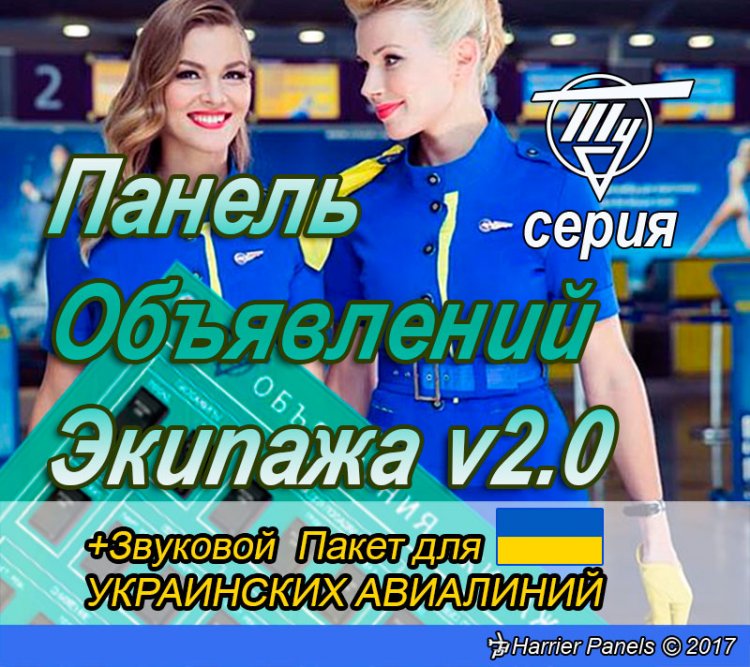
The panel allows you to play any sound by pressing a switch accordingly. It is based on Marcus Thompson's FDSFX panel. Added messages up to 30 for different stages of the flight, the panel itself is redesigned, this package includes a Russian Tupolev aircraft style skin. Also the panel comes with Ukrainian airlines crewpack - messages in Ukrainian / English / Russian. Suitable for any Ukrainian airline. The panel will serve as a virtual cabin crew for your aircraft.
→ Size:
34 MB
→ Date:
9 years ago (20.08.2017 13:33)
→ Author:
Harrier
→ Approved by moderator:
aiRoNe
→ License:
Freeware - Free version, Unlimited Distribution
→ Downloaded:
1663 time(s)